
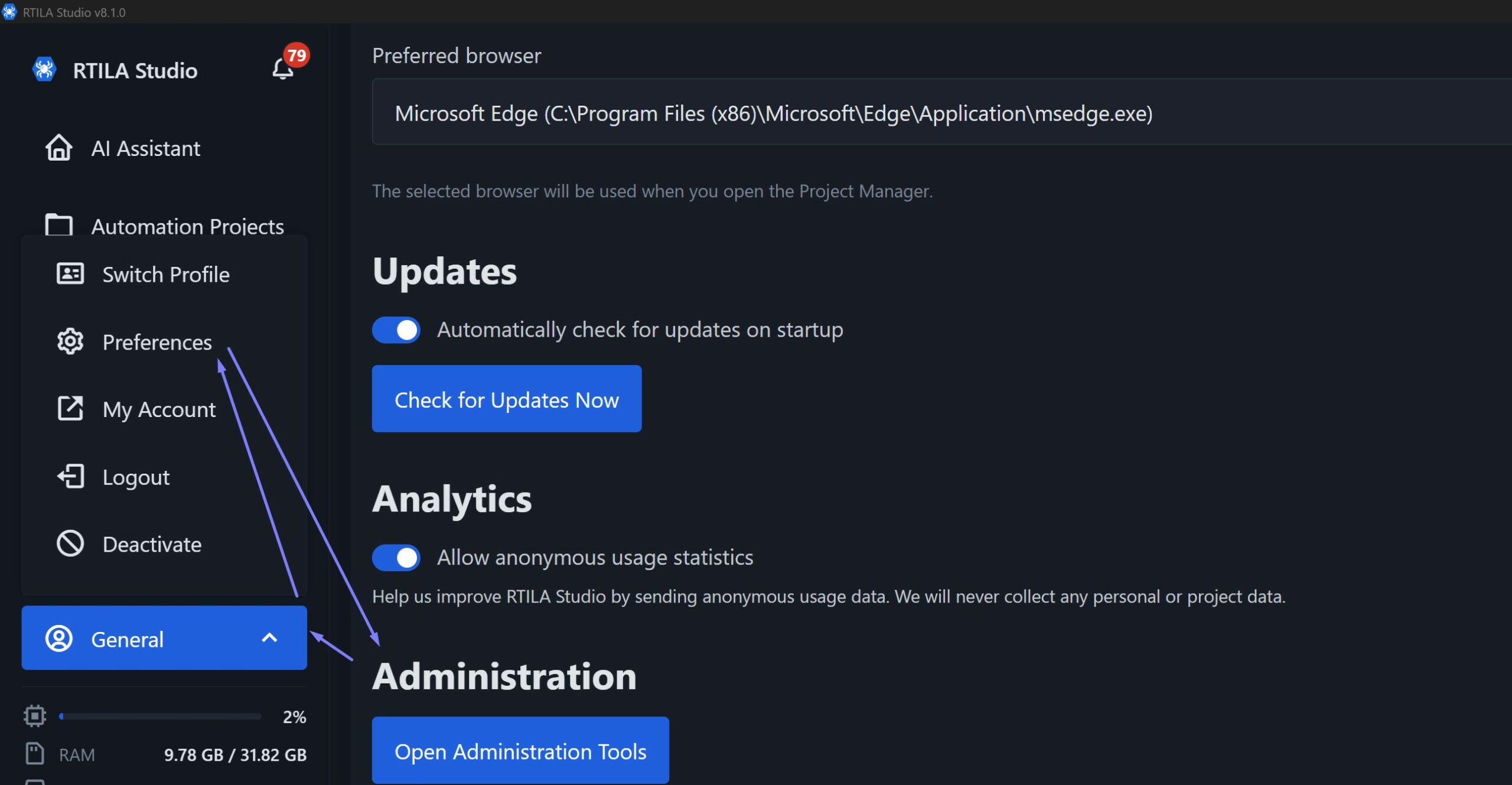
Our Ai Assistant when configured to use Local LLMs will download and call LLMs GGUF files from a specific folder on your Windows/Mac/Linux computer. To find this local folder use RTILA Studio and go to General > Preferences then scroll down and click on “Open Administration Tools”. See screenshot below
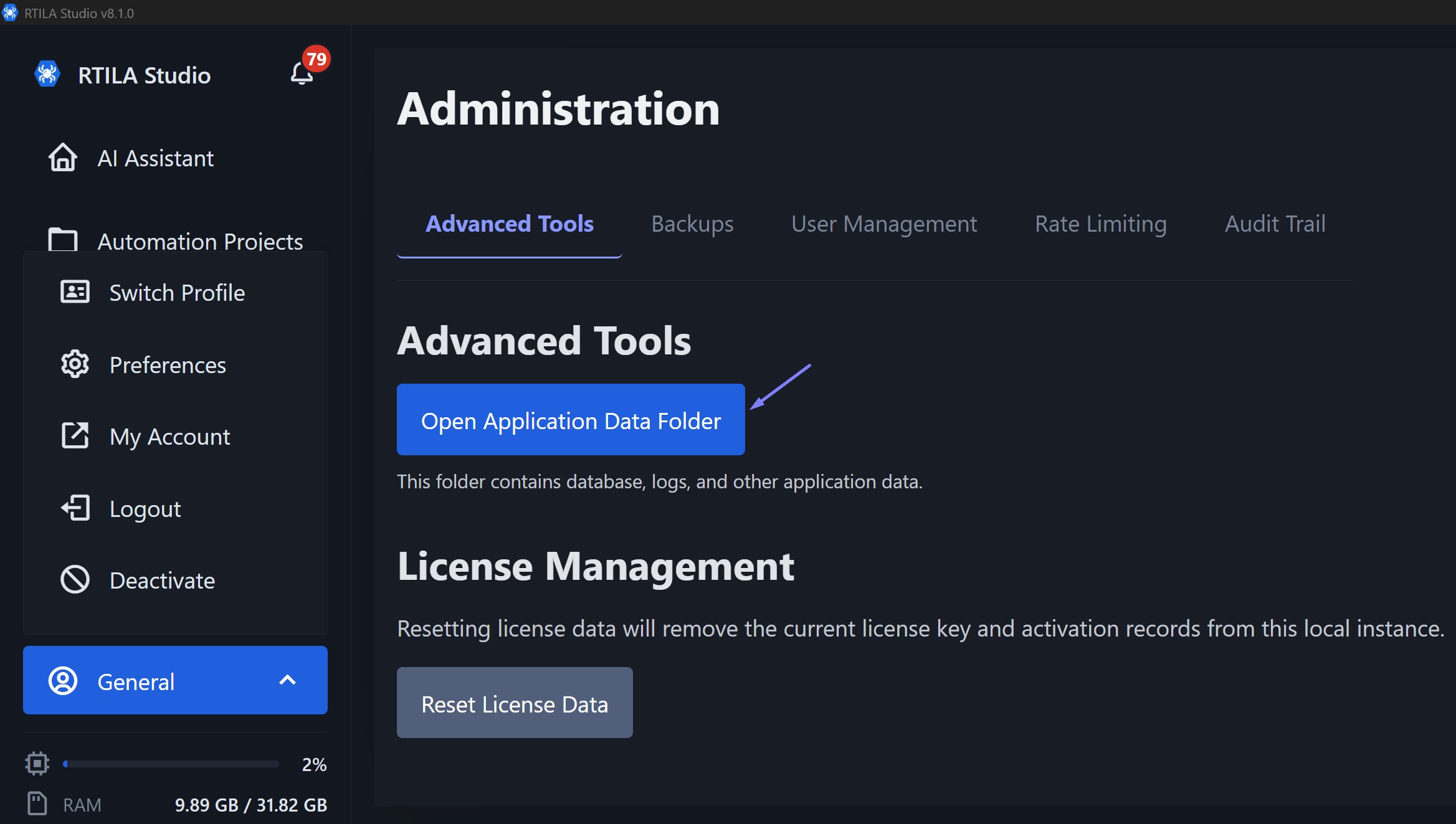
This will bring you to the Advanced Tools Tab from where you can click on “Open Application Data Folder”. See screenshot below
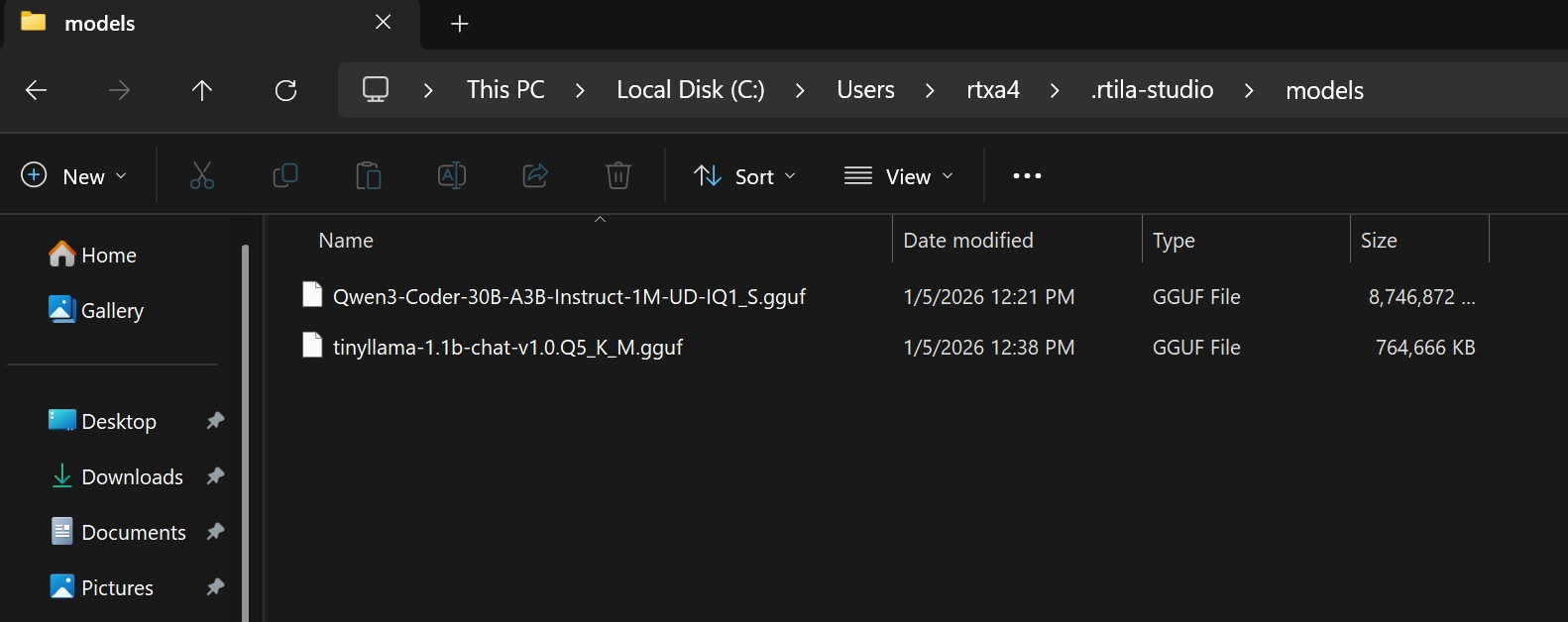
This shall open your Disk application folder for RTILA V8 and you will see a folder called “models” and that is where all the GGUF models are stored. See screenshot below
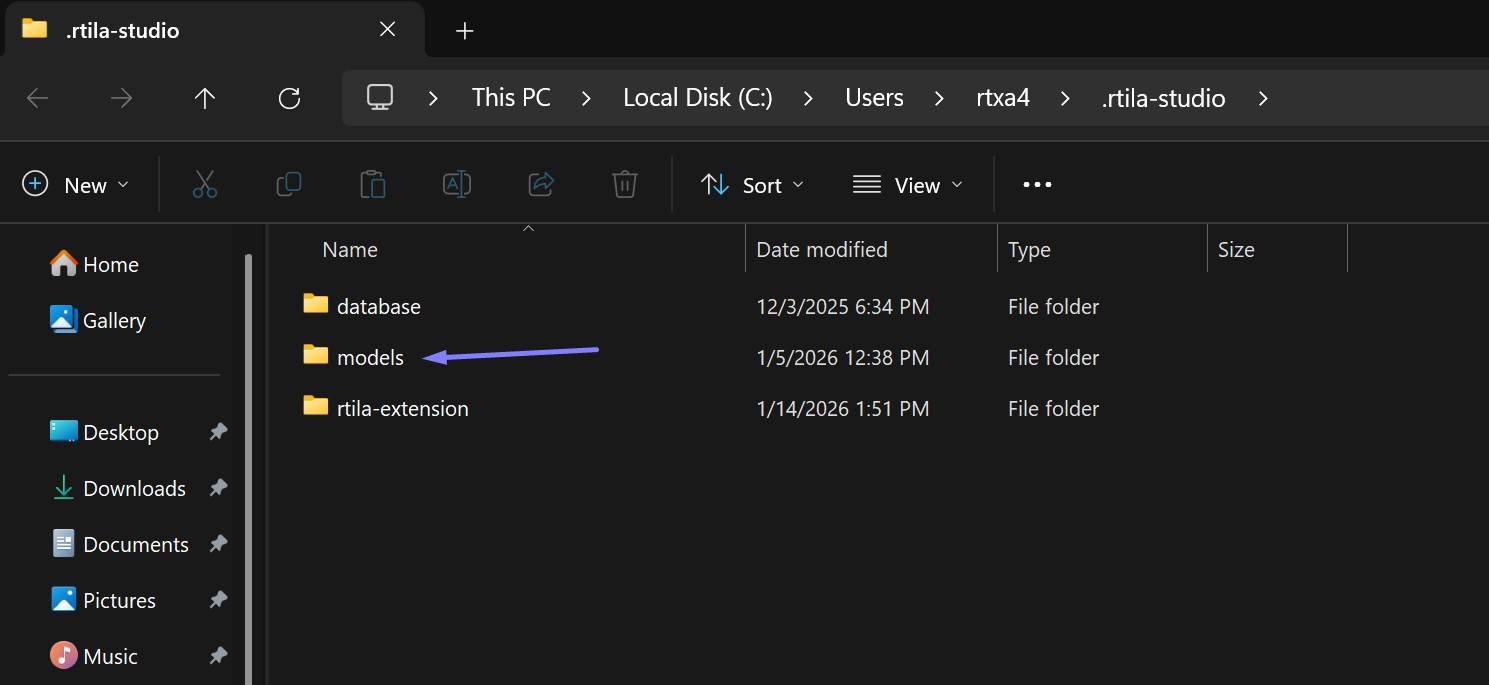
Once in that folder you can delete and paste/add GGUF files of chosen and compatible LLMs. Note that RTILA V8 has an Ai Assistant configuration section where you can specify if you will use CPU or GPU for handling the local models. Make sure you download and use GGUF models that are compatible with CPU or with GPU (preferably NVIDIA). See screenshot of local LLM files in the Models folder below.